For 30 days between November 17 and December 18, 2025, the GSC Page Indexing report showed frozen data — stuck at November 21 while Google’s crawlers kept working normally underneath. The timing was ugly: the December 2025 core update was rolling out during the same window, so the one report SEOs use to confirm “is this page actually in the index” went dark exactly when it mattered most.
That outage taught the useful lesson. A page that isn’t indexed earns nothing — no clicks, no enquiries, no revenue — no matter how good the content or how strong the backlinks. The GSC Page Indexing report is where you find out which of your money pages Google has quietly excluded. This checklist maps every status in that report to a diagnosis and a fix, ordered by severity, so an audit produces a prioritized worklist instead of a pile of statuses.
- Sale!


SEO Content Audit
Original price was: 1999,00 €.1799,00 €Current price is: 1799,00 €. Select options - Sale!
Search Rankings and Traffic Losses Audit
Original price was: 3500,00 €.2999,00 €Current price is: 2999,00 €. Select options - Sale!
Full-Scale Professional SEO Audit
Original price was: 5299,00 €.4999,00 €Current price is: 4999,00 €. Select options
Work through it in order. Crawl and access problems get diagnosed before content-quality problems, because there’s no point rewriting a page Google can’t reach.
What the GSC Page Indexing Report Actually Shows
The Page Indexing report (under Indexing → Pages in Google Search Console) sorts every URL Google has encountered into two buckets: indexed and not indexed. The not-indexed bucket comes with reasons attached, and those reasons are the entire value of the report.
Each status is Google telling you how its systems read your site’s crawlability, content quality, and information architecture. Treat the statuses as isolated bugs to patch, and you’ll spend a quarter fixing symptoms. Read them as evidence of structural problems — a template disallowed in robots.txt, a canonical strategy Google keeps overriding, a publishing velocity that outruns crawl budget — and each cluster of URLs points to one root cause you can fix once.
The report earns its keep on sites with 500+ pages. On a 40-page site, spot-check with the URL Inspection tool first: if your key URLs appear in a site:yourdomain.com search, the aggregate report has little to tell you. This checklist assumes a site large enough for patterns to form.
The Full GSC Page Indexing Checklist
1. Start With the Indexing Summary
Before touching any individual status, record the macro picture. Open the Pages report and note the indexed count against the not-indexed count.
Then calculate one number: what percentage of the pages you want indexed are excluded. If more than 5% of your intended-indexed pages sit in the not-indexed bucket, you’re looking at a site-wide signal, not a page-level bug — and the rest of this checklist becomes a root-cause investigation rather than a cleanup. Read the trend graph the same way: a declining indexed count or a climbing not-indexed count needs investigation this week, not this quarter. Cross-check the indexed number against a site:yourdomain.com search to confirm the two roughly agree.
2. Server Errors (5XX)
Priority: critical. A 5XX response during Googlebot’s crawl window doesn’t just block one page — it throttles crawl frequency across the whole domain. Googlebot reads server errors as “this host is under strain,” backs off, and the retreat cascades into a growing “Discovered — Currently Not Indexed” backlog on pages that were perfectly healthy.
To diagnose, go to Settings → Crawl Stats → By Response and look for any share of 5XX responses. Then check whether spikes in average server response time line up with drops in total crawl requests. That inverse pattern — response time up, crawl requests down — confirms Googlebot is throttling. GSC aggregates the data, so pull your raw server logs for Googlebot-specific 5XX patterns the dashboard smooths over.
The fix is infrastructure, not SEO: resolve whatever is straining the server. Even sporadic errors during Googlebot’s visits trigger disproportionate crawl-rate reduction, which is why intermittent 5XXs on a busy site do more damage than their raw frequency suggests. If server strain is a recurring theme, technical SEO work has to start at the hosting layer before anything on-page matters.
3. Redirect Errors
Redirect errors flag chains or loops Googlebot couldn’t resolve. Every hop in a chain spends crawl budget that should have gone to a live page.
Identify every chain with a crawl tool, then collapse anything longer than two hops into a single 301 pointing straight at the destination. Confirm your sitemaps list only final URLs — never the intermediate steps of a redirect. And check for loops: URL A redirecting to B redirecting back to A is a dead end Googlebot abandons.
4. Blocked by Robots.txt
This status means Googlebot tried the URL and your robots.txt blocked it. Nine times out of ten it traces to a rule that survived a migration or a CMS update nobody re-checked.
Pull up yourdomain.com/robots.txt and read it against your key templates. Use the Robots.txt Tester (Settings → Robots.txt) to validate specific URLs. The failure mode that hurts is an entire template — product pages, category pages, a blog subdirectory — disallowed by a single overly broad rule. One line can strand thousands of pages. Note the related status “Indexed though blocked by robots.txt,” covered below, which behaves differently and needs a different fix.
5. URL Marked Noindex
A noindex directive is an explicit instruction to leave the page out of the index. When it lands on URLs that should be indexed, the cause is almost always a setting — a CMS toggle, a plugin rule, or a code deploy that flipped a flag.
Use URL Inspection to confirm where the noindex lives: a meta robots tag in the HTML, or an X-Robots-Tag in the HTTP header. Check your CMS global settings — WordPress, Shopify, and Wix all ship a site-wide “discourage search engines” switch that gets flipped during staging and forgotten. Audit your SEO plugin for noindex rules quietly applied to taxonomies, archives, or specific post types. The dangerous one is the X-Robots-Tag: it’s applied server-side, never appears in page source, and stays invisible until you inspect the raw HTTP response headers in DevTools. A noindex you can’t see in the source is a noindex you’ll miss for months.
6. Soft 404
A soft 404 is a page that returns a 200 OK status while showing nothing meaningful — an empty search-results page, a “no products found” template, a listing with all its data missing. Google renders it, sees an error dressed as a success, and files it as a quality problem.
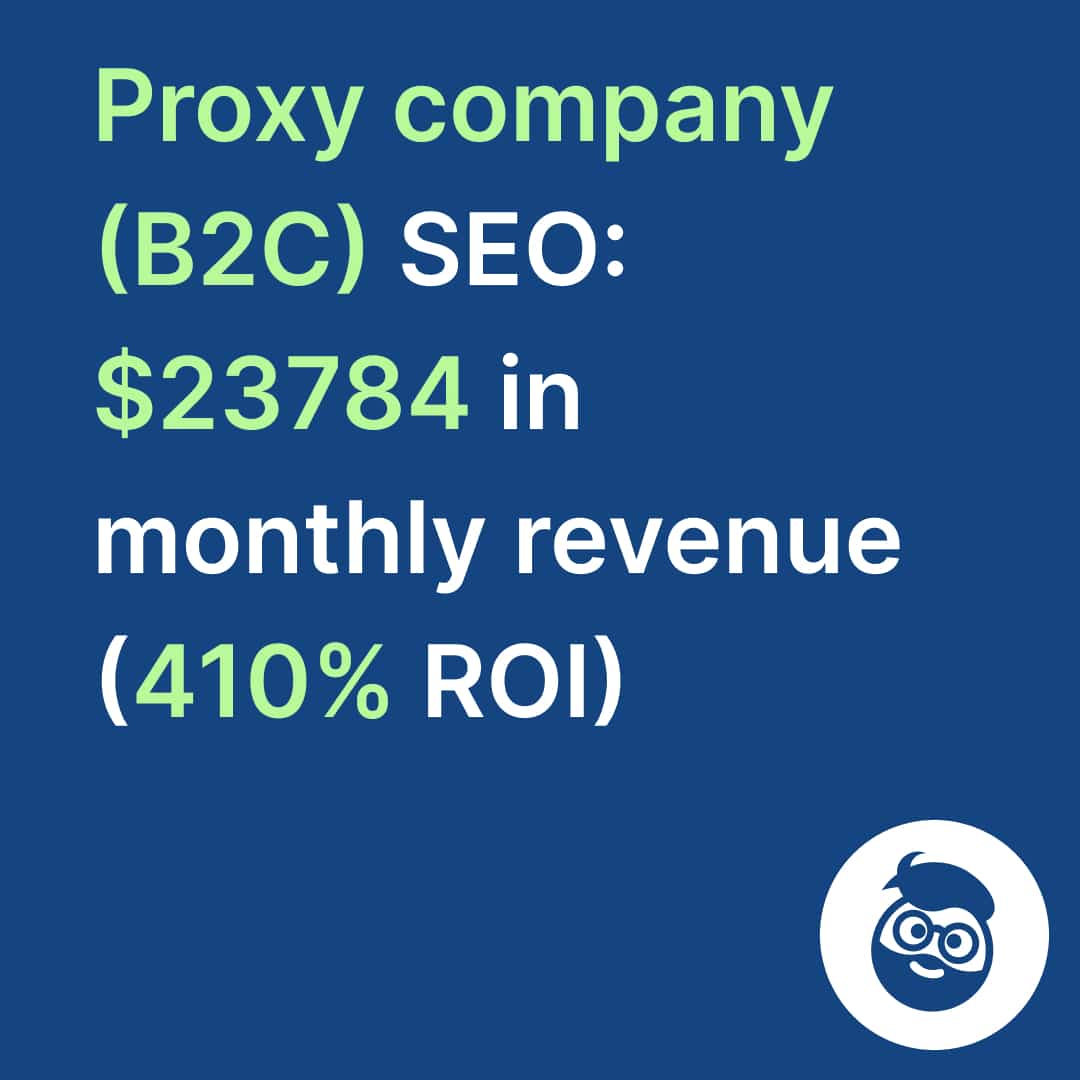
Review each flagged URL and decide whether it carries real content. Pages with nothing substantive should either 301 to a relevant live page or return an honest 404. For dynamic URLs — filtered categories, internal search results — the harder question is whether they belong in the index at all. Most filtered permutations have no standalone search demand and exist only to burn crawl budget. This is the exact pattern we found on a proxy-selling e-commerce site, where filtered URL sprawl was diluting crawl attention away from the pages that convert; consolidating it was part of what produced $23,784 in monthly revenue at 410% ROI.
7. Blocked Due to Unauthorized Request (401)
A 401 means the URL demands authentication Googlebot can’t provide. Gated pages should never be in your sitemap in the first place.
Strip all authenticated URLs from the XML sitemap. If a page returning 401 was supposed to be public, the problem is upstream — a CDN rule, an .htaccess directive, or middleware applying an auth check to the wrong path.
8. Not Found (404)
A 404 in this report is a URL Google reached and found dead. A steady baseline of 404s is normal on any living site. A sudden spike is a structural signal.
Trace where the 404 URLs come from — internal links, external links, or the sitemap. Remove dead URLs from XML sitemaps immediately. For pages that were moved or deleted but held value, 301 them to the closest live equivalent. Then clean the internal links still pointing at the dead destinations, because every internal link to a 404 sends Googlebot and users to the same wall.
9. Blocked Due to Access Forbidden (403)
A 403 means the server actively refused Googlebot. The usual culprits are IP-based blocking rules or a CDN/firewall configuration that misreads Googlebot as a bot worth blocking.
Review CDN and firewall rules to confirm Googlebot’s published IP ranges aren’t caught in a block list. Check server-level access controls — .htaccess, Nginx config — for rules that deny by user-agent or geography and catch the crawler as collateral.
10. URL Blocked by Other 4XX Issue
This is the catch-all for 4XX codes outside 401, 403, and 404 — usually application-level errors rather than access rules.
Run URL Inspection on the affected URLs to read the specific response code, then investigate the application layer. Routing errors, API gateway misconfiguration, and legacy redirect rules that emit unexpected 4XXs are the common causes.
11. Blocked by Page Removal Tool
This status means someone used GSC’s Removals tool to suppress the URL from search. Removal requests expire after 90 days, and when they lapse, the page reappears unless a permanent signal — noindex or a 301 — was put in place behind it.
Audit active requests in the Removals section. Confirm each suppression was deliberate. For anything that should stay out of the index permanently, add a noindex directive or remove the content, because a removal request alone is a 90-day timer, not a decision.
12. Crawled — Currently Not Indexed
This is the most diagnostically loaded status in the report. Google visited the page, evaluated it, and decided against indexing. The decision happened after the crawl — which rules out crawlability and points straight at content quality or relevance.
Four causes account for most of it. Thin content: little unique information relative to your other pages or the SERP. Duplicate content: heavy overlap with another URL, which Google filters to keep its index clean. Weak internal linking: a page with few or no internal links lacks the contextual signals Google uses to judge whether it’s worth keeping. Search-intent mismatch: a page that answers no coherent query.
The fix protocol runs in order. First, decide whether the page serves a genuine intent not already satisfied by another URL on your site — if it doesn’t, consolidate. If it’s thin, expand it or merge it into a stronger page via 301. If it’s duplicative, canonicalize to the authoritative version and keep only canonical URLs in the sitemap. Strengthen internal links from topically related, well-indexed pages. Then request indexing through URL Inspection and track the status weekly; changes take 2–4 weeks to register.
When more than 5% of your target pages carry this status, stop fixing URLs one at a time. That volume is a topical-authority and information-architecture problem, and it needs an SEO content audit that maps the whole cluster before you touch individual pages.
13. Discovered — Currently Not Indexed
Here Google knows the URL exists but hasn’t crawled it. The difference from “Crawled — Currently Not Indexed” is where in the pipeline Google stopped, and it matters: Google chose not to spend crawl budget visiting these pages at all. That’s a stronger negative signal than crawling and rejecting.
Google’s own threshold is worth internalizing before you diagnose. According to Google Search Central, crawl budget is a real constraint mainly for sites with over 1 million pages, or sites of 10,000+ pages that change daily. Below that, a persistent “Discovered” backlog is almost never a technical crawl-capacity limit — it’s crawl demand, which is Google’s shorthand for site quality, popularity, and internal-link strength. Reaching for “crawl budget” on a 3,000-page site usually hides the real diagnosis: the submitted URLs are weak duplicates or pages with no internal path to them.
For sites genuinely large enough for budget to bite, investigate three things. Crawl-budget exhaustion: a mass of thin, duplicate, or parameter-generated URLs consuming Googlebot’s connections. Poor internal linking: too few entry points, so Google never builds a reason to prioritize discovery. And publishing velocity outrunning crawl capacity — shipping content faster than Google will crawl it.
The fix: prune the low-value URLs eating the budget, add internal links from your indexed high-traffic pages to the affected URLs, and review Crawl Stats for the response-time patterns that make Googlebot back off. On a large site, this is where crawl efficiency and technical SEO services do the heavy lifting.
14. Alternate Page with Proper Canonical Tag
Not an error. These pages were deliberately canonicalized to another URL, and Google accepted the signal. No action needed — unless you sample a few and find a canonical pointing at the wrong preferred URL, or worse, at a 404 or a redirect. Fix those; leave the rest alone.
Showing 4–5 of 5 resultsSorted by popularity
15. Duplicate Without User-Selected Canonical
Google found duplicate or near-duplicate content across several URLs and no canonical tag telling it which one you prefer. So Google picks for you — and it won’t always pick the URL you’d want ranking.
Add canonical tags across every duplicate group, all pointing at the single preferred version. Keep only that canonical URL in the XML sitemap. If faceted navigation or session IDs are generating the duplicates, review your URL-parameter handling — parameter sprawl is the usual engine behind this status on e-commerce sites, and resolving it is core e-commerce SEO work.
16. Duplicate — Google Chose a Different Canonical Than You
This is a direct conflict. You set a canonical tag; Google overrode it and indexed a different URL as the authoritative one. Google treats canonicals as hints, not commands, and when it disagrees, it’s telling you the signals on your site contradict your stated preference.
The override usually means one of two things. The URL you designated as canonical carries weaker signals than the one Google chose — fewer internal links, thinner content, less external authority. Or there’s a structural inconsistency: the non-canonical version quietly collects more internal links or backlinks than the version you named.
The fix isn’t to re-declare the canonical louder. It’s to align every signal behind it — internal links, sitemap inclusion, external links, and content depth all pointing at the version you want. Google follows the weight of evidence, not the tag alone.
17. Page With Redirect
These URLs were crawled and found to redirect elsewhere. They shouldn’t appear in your sitemap or in internal links.
Remove redirecting URLs from XML sitemaps, update internal links to point straight at the final destination, and collapse any multi-hop chains into a single 301. Every internal link to a redirect makes Googlebot take an extra hop it didn’t need to.
18. Indexed, Though Blocked by Robots.txt
Google indexed the page in spite of a robots.txt block — almost always because an external site linked to it, and Google indexed the URL from the link without ever crawling the content. Robots.txt controls crawling, not indexing, which is exactly why it fails as an indexing block here.
Decide whether the page belongs in the index. If yes, remove the disallow rule so Google can crawl and render it properly. If no, add a noindex directive — a meta robots tag or an X-Robots-Tag header. The block alone won’t keep a linked page out of the index; only noindex will.
19. Page Indexed Without Content
Google indexed the page but found little or nothing meaningful when it rendered — commonly because the content loads via JavaScript that Googlebot didn’t execute.
Use URL Inspection’s Live Test to see what Google actually renders, then compare that snapshot to what a human sees in a browser. When JavaScript content isn’t rendering, evaluate server-side rendering or pre-rendering so the content exists in the HTML Google receives. Pages that are genuinely empty should be noindexed or removed.
Crawl Stats Review
The Crawl Stats report (Settings → Crawl Stats) surfaces server-level data the Page Indexing report doesn’t. Read three things. Average response time, because high response times push Googlebot to throttle and manufacture “Discovered” backlogs. The share of 5XX responses in crawl requests by response, because even a small percentage during Googlebot’s visits cuts the crawl rate. And host status, which flags DNS, robots.txt, or connectivity failures at the host level before they show up as page-level symptoms.
URL Inspection and Render Evaluation
For any URL sitting in a concerning status, validate with URL Inspection before you act. The Live Test shows what Google sees right now, including rendered JavaScript output. The cache snapshot, compared against the live page, reveals recent changes Google hasn’t re-crawled yet. And the resource-accessibility check confirms the CSS, JavaScript, and images needed to render the page aren’t themselves blocked by robots.txt.
Sample at least 10–20 URLs from each problem category before drawing a conclusion about root cause. One inspected URL is an anecdote; twenty is a pattern.
Security and Manual Actions
Two checks belong alongside every indexing audit. Manual Actions (Security & Manual Actions → Manual Actions): a penalty from Google’s webspam team suppresses affected URLs or removes them entirely, and it clears only after you fix the issue and submit a reconsideration request. Because manual actions are announced in GSC, an unread notification here can explain a ranking collapse that looks algorithmic. Security Issues (Security & Manual Actions → Security Issues): a hack-based spam injection floods your index with pages you never made, dilutes topical authority, and poisons your site’s standing with Google.
For hack and spam detection, run a manual site:yourdomain.com and scan for URL structures that don’t belong to your content. Unfamiliar directories full of pharma or gambling pages are the tell.
Enhancements: Structured Data
The Enhancements section reports structured-data errors. Schema doesn’t decide whether a page gets indexed, but malformed markup creates ambiguity about what a page is — and in an AI-search landscape where systems extract entities and relationships from your content, that ambiguity costs eligibility for rich results and AI citations.
Review errors across breadcrumbs (which signal site architecture in the SERP), FAQ schema (note that Google restricted FAQ rich results to authoritative government and health sites in 2023, though the markup still functions as an entity signal for AI systems), video (errors here block video carousels), and unparsable structured data — malformed JSON-LD Google can’t read, which you fix against Google’s Rich Results Test.
The opportunity is in the adoption gap. Only about 12.4% of websites implement any structured data at all, per Schema.org usage estimates — which means correct, machine-readable markup remains a measurable competitive edge rather than table stakes.
Frequently Asked Questions
Q: How often should I review the GSC Page Indexing report? Weekly is the right cadence for most sites — enough to catch new errors and spikes in excluded pages before they compound. After any significant change (a migration, redesign, CMS update, or bulk publish), check within 48–72 hours. Sites with 1,000+ pages benefit from a monthly deep audit using this full checklist.
Q: What’s the difference between “Crawled — Currently Not Indexed” and “Discovered — Currently Not Indexed”? The difference is where Google stopped. “Discovered” means Google knows the URL exists but chose not to spend crawl budget visiting it — a stronger signal of perceived low value or, on very large sites, crawl-budget exhaustion. “Crawled” means Google visited, rendered, evaluated the content, and then declined to index it. Both point to content quality or architecture problems, but “Discovered” also warrants a look at crawl budget and server performance.
Q: My canonical tags are set correctly, but Google keeps choosing a different canonical. Why? Google treats canonical tags as hints, not directives. When it overrides your canonical, the structural signals on your site — internal links, sitemap inclusion, external backlinks — are pointing more strongly at a different URL than the one you designated. Align all of those signals behind your preferred URL to raise the odds Google accepts it.
Q: Can fixing indexing issues directly improve rankings? Indirectly, and only as a prerequisite. A page that isn’t indexed can’t rank for anything, so resolving indexing errors is the gate every ranking has to pass through first. But a page that was “Crawled — Currently Not Indexed” for thin content won’t rank well the moment it’s indexed — content quality and intent alignment still decide position. Indexing gets you eligible; it doesn’t get you ranked.
Q: How long do indexing fixes take to show up in GSC? Expect 2–4 weeks after implementing fixes and requesting re-indexing via URL Inspection. The “Validate Fix” function typically takes up to two weeks. And remember the aggregate report can lag actual crawl behavior — as the November–December 2025 outage showed, so use URL Inspection’s Live Test for a real-time read on any specific page rather than trusting the aggregated counts alone.
Next Steps
Run this checklist against your current Page Indexing report and fix in order of crawl severity: server errors and access blocks first, content-quality issues second, canonical conflicts third. If “Discovered — Currently Not Indexed” is where the volume sits, that’s your signal to start a content audit before touching individual URLs — because the problem is architectural, not page-level.
- Sale!
SEO Content Audit
Original price was: 1999,00 €.1799,00 €Current price is: 1799,00 €. Select options - Sale!
Search Rankings and Traffic Losses Audit
Original price was: 3500,00 €.2999,00 €Current price is: 2999,00 €. Select options - Sale!
Full-Scale Professional SEO Audit
Original price was: 5299,00 €.4999,00 €Current price is: 4999,00 €. Select options
When indexing issues persist despite clean technical fundamentals, the root cause is almost always information architecture: too many thin pages diluting crawl attention, or a structure that doesn’t signal topical authority clearly enough to earn Googlebot’s time. That’s diagnosable and fixable. If you’d rather have it diagnosed for you, a Full-Scale Professional SEO Audit maps every indexing status against crawl data and internal-link structure, or a Search Rankings and Traffic Losses Audit traces a specific drop back to its cause. Either way, the measure of success isn’t how many pages are indexed — it’s how many of the right pages are indexed and earning enquiries. Book a call and we’ll start with your report.